
This sets the training parameters based on the information set in [Database] and [Preprocess] and performs the function to train according to the set parameters.
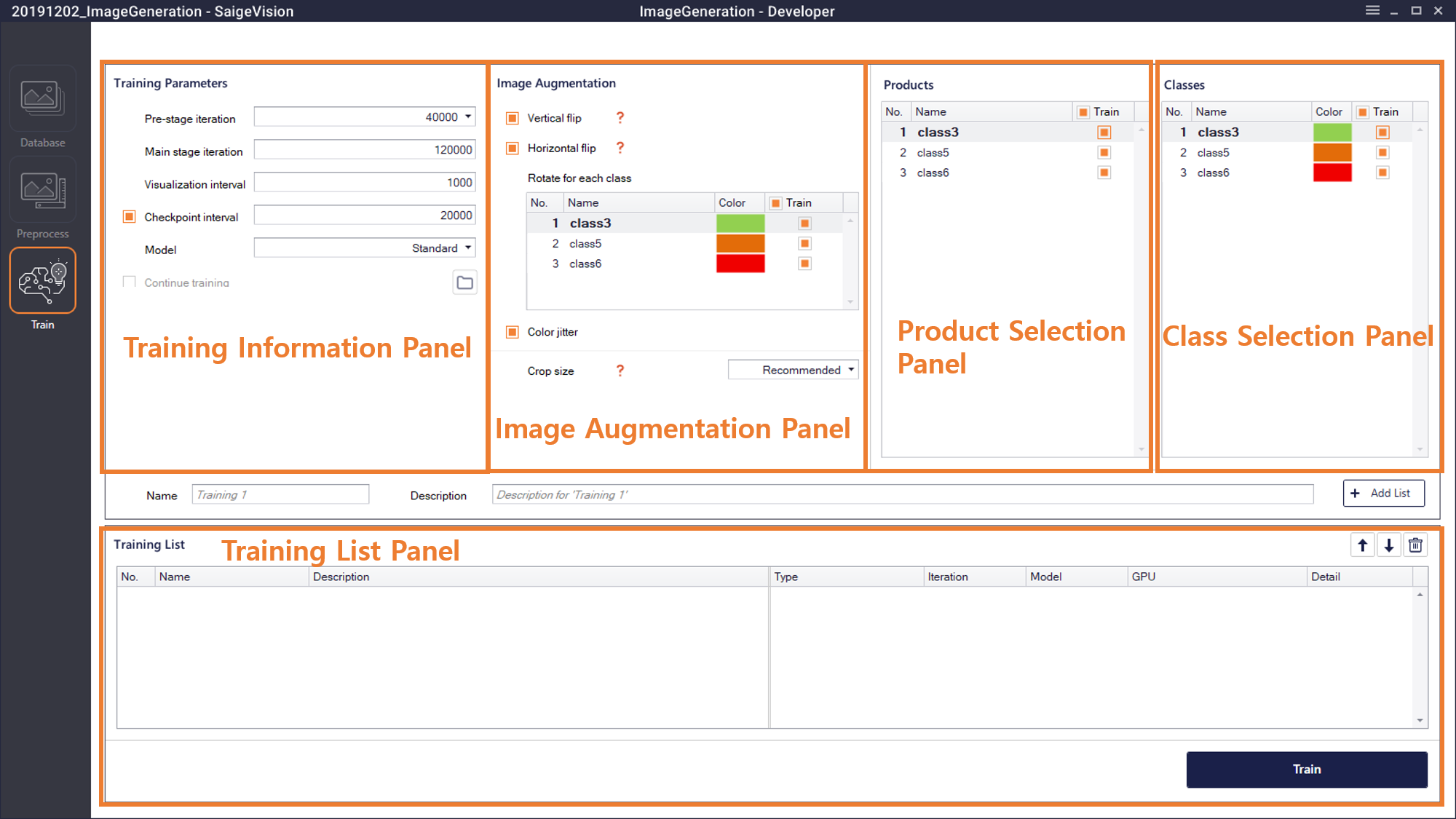
Training Information Panel (Training Parameters)
- Pre-stage iteration: This represents iteration that performs the necessary preprocess before starting training. It is recommended to set 60,000 times in general, to set 80,000 times when there is a lot of data, and 20,000 times or 40,000 times when there is little data.
- Main stage iteration: Training progresses by the corresponding number. It is recommended to set in proportion to the amount of data to train. In general, setting 120,000 times is recommended and when there is little data, it can be set to about 80,000 times. Training results are saved when a minimum value of 100 is entered.
- Visualization interval: Whenever training progresses as much as the corresponding number, it shows the appearance of defects on the training result template image on the Training Pop-Up panel. A value of at least 100 should be entered.
- Checkpoint interval: This saves the training result whenever training progresses as much as the corresponding number. If the checkbox of the checkpoint interval is not selected, intermediate results are not saved. Here, a value of at least 500 should be entered.
- Continue training: This is a function to import the previous training result to continue training. Clicking the folder icon
 imports the training results. The number of the training iterations of training results imported from Continue training is reflected in the results. For example, if users load a training result file of 5,000 iterations and continues 3,000 iterations, the result file is marked as 8,000 iterations. For the Image Generation mode, the model that can proceed with Continue training should match the class information to be continued to train and the class information of the model to be continued to train.
Image Augmentation Panel (Image Augmentation)
For stable and effective training, training can be performed with applying various changes to existing images. This technique is called image augmentation. Users can select the type and degree of change to be applied according to the characteristics of the image.
- Vertical Flip: This randomly flips the image upside down (recommended for use).
- Horizontal Flip: This randomly flips the image left and right (recommended for use).
- Rotate: Users can choose whether to apply this transformation of Rotate for each defect. For general defects, it is recommended to apply the transformation of Rotate; however, the transformation of Rotate should not be applied to some special defects that always occur only in one direction (e.g. scratches that always occur horizontally only).
- Color jitter: This makes subtle changes in light and shade, contrast, and color (recommended for use).
- Crop size: This crops around the labeled defect to the crop size to use for training. According to the defect size, it sets to 128 for small defects, and to 256 for large defects. It is recommended to set it to Recommended since crop size is automatically set by an internal algorithm when it is set to Recommended.
- NG : OK: This is to set how many OK patch images match one defect patch in training. If "1: 1" is selected, the defect patch and the OK patch image are matched in a ratio of 1: 1. This is recommended when the training image is an image after cropping the product. "1: Many" means that a number of OK patch images are matched to one defect patch. This is recommended when the training image is an image that covers the entire product.
Product Selection Panel (Products)
This panel is for selecting products to be used for training. At least one product should be selected.
Class Selection Panel (Classes)
This panel is for selecting defect classes to be used for training. Defect classes should include at least one label among the selected products.
Training List Panel
This is the same as the Training List Panel of the Defect Inspection mode.
Training progress
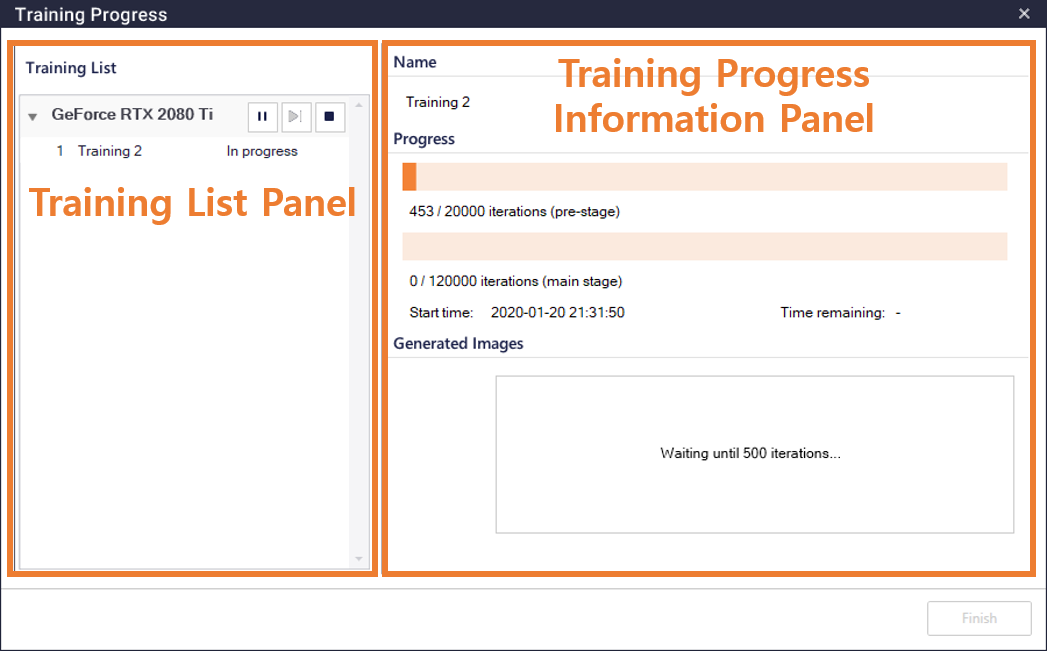
This section is the same as the Training Progress of the Defect Inspection mode except for the Training Progress Information panel. Training Progress Information panel shows the training progress of the pre-stage and main stage. The main stage starts after the end of the pre-stage. The defect result generated by the current training results is shown in the Generated Images panel at the visualization intervals. If there are many training images, a delay of several minutes may occur until the pre-stage starts after Proceed Training button is clicked.