
Inspector – [Inspect] provides a function to detect and recognize characters in new images using the training results acquired in the Developer. [Inspect] consists of several sub-tabs, and one sub-tab is for inspecting images using one training result. To inspect using several different training results, sub-tabs should be added as many as the number of training results. Whenever a new sub-tab is added, a Load Model window appears and users can select the desired training result.
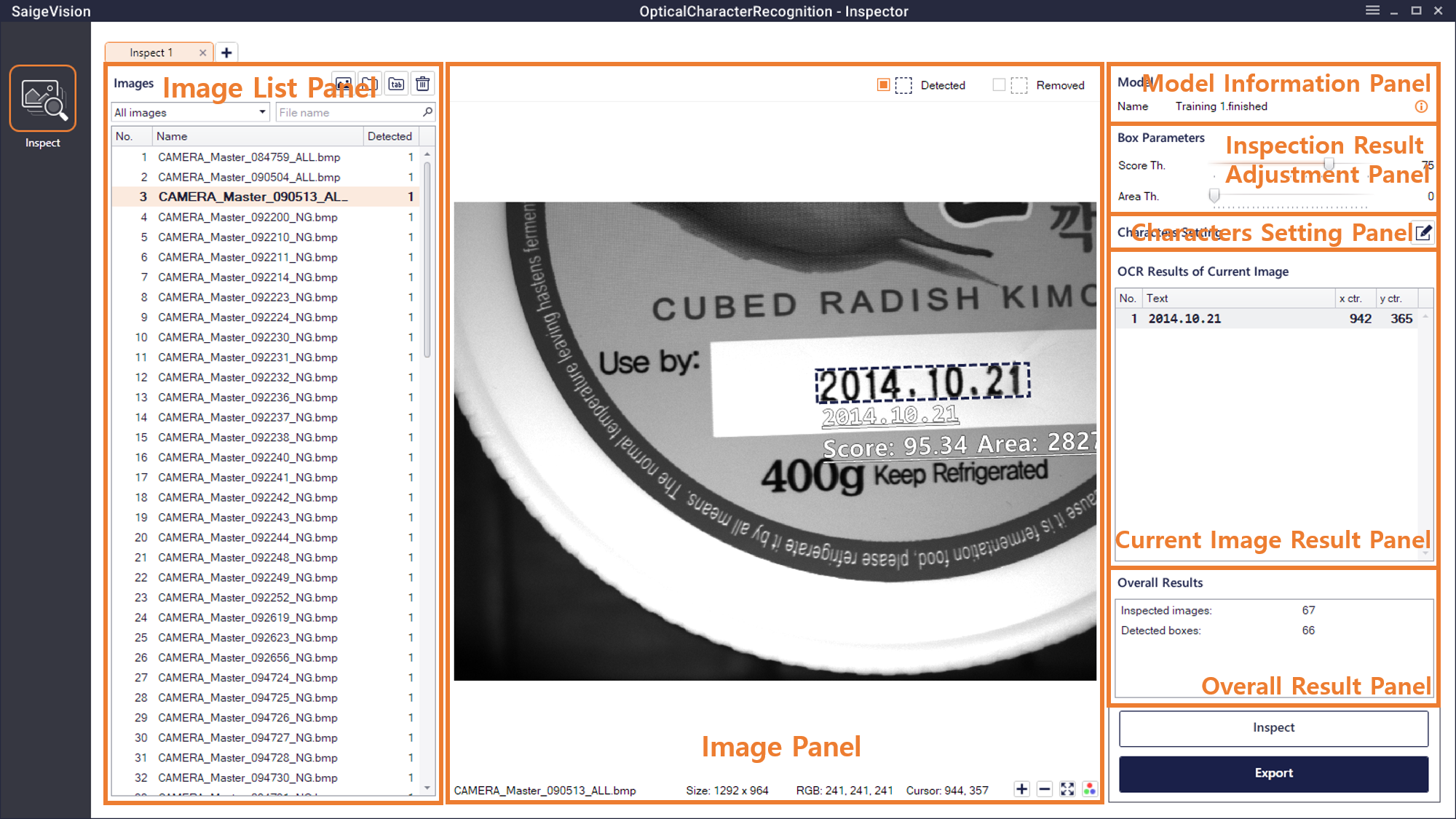
Image List Panel (Images)
This is the same as the Image List Panel in the Defect Insepction mode.
Image Panel
This shows all the information except for the True Label in the Image panel of the [Analyze] tab.
Model Information Panel (Model)
Users can check the name and information of the trained model imported when creating the tab.
Inspection Result Adjustment Panel (Box Parameters)
This is the same as the Inspection Result Adjustment Panel of the [Analyze] tab.
Current Image Result Panel (OCR Results of Current Image)
Detected labels of the image are displayed with the corresponding text and the coordinate of the box center.
Overall Result Panel (Overall Results)
Users can check the number of inspected images (Inspected Images), the total number of detected labels (Detected Boxes).
Inspect
When users click the [Inspect] button, the Inspect Progress window appears. A detailed information is the same as the Inspect button of the [Analyze] tab.
Export
When users click the [Export] button, the analysis results are reported as follows.
Text file: This file allows users to check the parameter information, the total number of detected texts and characters.
Overlayed Images:
- Sorted by with or without ‘Detected’ objects: It separates images in which one or more objects are detected from images in which none are detected, and saves them separately by creating folder structures.
Save or Load Tabs
Users can save the tab which completed the inspection as a file in .srInspectTab format by right-clicking the tab or clicking the Save Current Tab button in the top right menu. Saved tabs can be loaded by clicking the Add Tab button (  ) and then clicking the Load Tab button (
 ).