
[Analyze] is a tab where users can check the training result from [Train] and this shows the performance of training results for images labeled in [Database]. [Analyze] can be used to predict the performance when the training result are applied to actual experimental data.
[Analyze] consists of several sub-tabs, and each sub-tab is for inspecting or analyzing images using one training result. When training is completed in [Train], the screen automatically switches to [Analyze]. Sub-tabs are created according to the number of completed training items, and images from the validation group are imported to the image list by default.
If there exist already completed training results, it is also possible to add sub-tabs freely. When users add a sub tab and click the [  ] button, the Load Model window appears and users can select the desired training results. In this created sub-tab, the image labeled in [Database] can be loaded and inspected. Alternatively, users can add a sub-tab and click the [
 ] button to import a saved tab and perform the inspection.
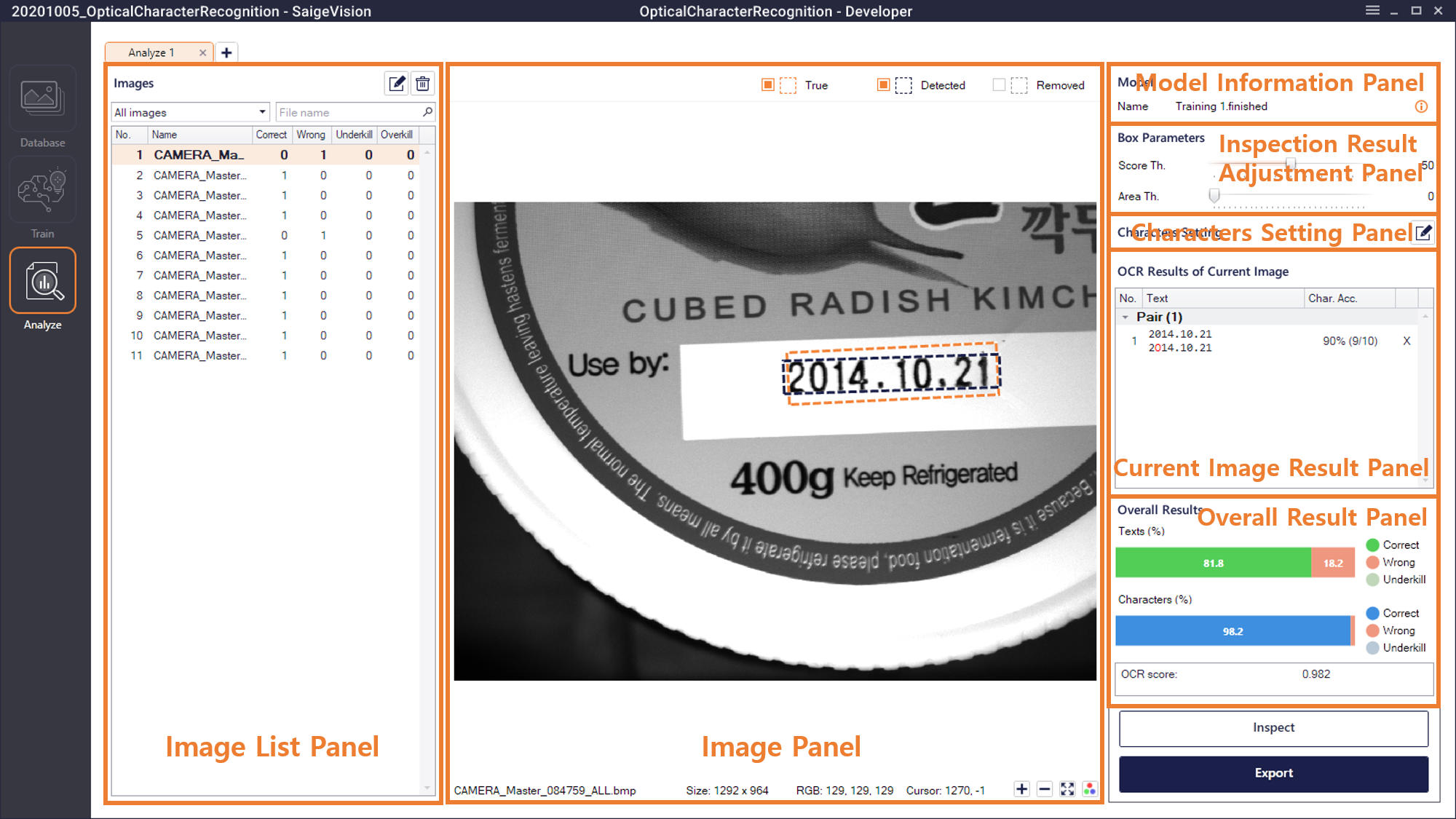
Image List Panel (Images)
This is a list showing images to be used for performance evaluation and shows the following information. Images can be sorted by each item.
- No.: Image number.
- Name: Image name.
- Correct: The total number of labels with correct box and text matching among labels drawn on the image (actual labels) in [Database].
- Wrong: The total number of labels with correct box matching but incorrect text matching among labels drawn on the image (actual labels) in [Database].
- Underkill: The total number of labels with no box matching among labels drawn on the image (actual labels) in [Database].
- Overkill: The total number of labels that do not belong to the actual labels among the detected labels.
Following relationships hold true.
The number of actual labels = Correct + Wrong + UnderkillThe number of detected labels = Correct + Overkill
Image Panel

The image above shows the top right part of the Image panel. The Image panel in the OCR mode shows the actual label (True), detected label (Detected), and deleted label (Removed) of the selected image along with the image. Whether the checkboxes are checked or not determines the presence or absence of labels on the Image panel.
- True: Whether to show the actual labels of the image (The true label drawn by users in [Database]).
- Detected: Whether to show, among the labels detected by the trained model, the labels finally detected by satisfying the conditions of Score Threshold and Area Threshold.
- Removed: Whether to show the labels detected by the trained model but deleted due to not satisfying the condition of Score Threshold or Area Threshold.
Model Information Panel (Model)
The Model Information panel displays the name of the training result set in the [Analyze] tab. When users click the Information button [  ], detailed information of the relevant training results appears.
Inspection Result Adjustment Panel (Box Parameters)
In the Inspection Adjustment Result panel, users can adjust in detail the inspection results by making appropriate changes to the result values detected by the trained model for the image. This includes changing of Underkill / Overkill ratio, etc.
Inspection result adjustment parameters in the OCR mode include Score TH (Threshold) and Area TH (Threshold). Default values of Score TH and Area TH are 50 and 0, respectively. The defect label detected by the trained model contains the score and area values. The labels are treated as Detected Label only when the both score and area values exceed the thresholds respectively; otherwise, they are treated as Removed Label. The range of Score TH value is [0-100] and that of the Area TH value is [0-the number of pixels of the largest box among the detected boxes].
Characters Setting Panel (Characters Setting)
Available characters must be set before inspection. In the Characters setting panel, if users click the  button, the Edit Characters window appears and the users can choose characters.
Caution
If available characters are reset after inspection, the existing inspection results are also reset.
Current Image Result Panel (OCR Results of Current Image)
The actual and detected labels of the current image are grouped into Pair, Underkill, and Overkill, and the meanings of each group are as follows.
Pair: If the box IOU value between the actual label and detected label exceeds the predefined criterion (0.3), these two labels are paired and displayed under the Pair group with additional information of character accuracy and correctness.
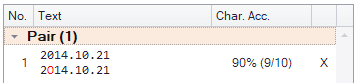
- Text: The text of the actual label is displayed in the upper row, and the text of the detected label is displayed in the lower row. Incorrectly recognized characters are emphasized in red in the lower row.
- Char. Acc.: The number of correctly recognized characters and their ratio are displayed by comparing the text of the actual label and the text of the detected label character by character. It is calculated based on the actual label, which means the length of the actual label text is used as the denominator of the displayed ratio.
- Correctness: O is displayed if the actual label text matches the detected label text correctly, otherwise X is displayed.
Example
If the actual label text is "ABC" and the detected label text is "ABCD", Char. Acc. becomes 100% (3/3), but correctness is X.Underkill: The actual labels which are not paired with any detected labels.
Overkill: The detected labels which are not paired with any actual labels.
Following relationships hold true.
Pair = Correct + WrongThe number of actual labels = Pair + Underkill = Correct + Wrong + Underkill
Overall Result Panel (Overall Results)
The Overall Result panel shows the inspection results in graphs and text.
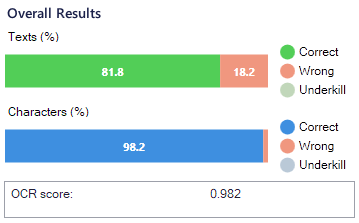
- Texts: The ratio of Correct, Wrong and Underkill is displayed based on the number of actual labels.
- Characters: The ratio of Correct, Wrong and Underkill is displayed based on the number of characters of actual labels.
Inspect
When users click the [Inspect] button, the Inspect Progress window appears. Users can inspect the uninspected images among the images loaded in the Image List panel and check out the progress information.
- Max inspection size: If the size of the image to be inspected is larger than the maximum inspection size, image is resized to the maximum inspection size with the same aspect ratio before the inspection is performed.
Export
When users click the [Export] button, the analysis results are reported as follows.
- Text file: This file provides total results including parameter information, overall OCR score, and overall Correct, Wrong and Underkill ratio values in terms of Texts and Characters.
- Overlayed Iamges:
- Sorted by with or without 'Wrong' objects: It separates images including one or more Wrong labels from images not including any Wrong labels, and saves them separately by creating folder structures.
- Sorted by with or without 'Underkilled' objects: It separates images including one or more Underkills from images not including Underkill, and saves them separately by creating folder structures.
- Sorted by with or without 'Overkilled' objects: It separates images including one or more Overkills from images not including Overkill, and saves them separately by creating folder structures.
Save or Load Tabs
Users can save the tab which completed the inspection as a file in .srAnalyzeTab format by right-clicking the tab (  ) or clicking the Save Current Tab button in the top right menu. Saved tabs can be loaded by clicking the Add Tab button (
 ) in [Analyze], and then clicking the Load Tab button ( ).