
Multipage function is only available in Segmentation mode. This function allows users to train and inspect multiple images in an integrated manner, when different types of images are obtained from a product. One page corresponds to one image, which can be a 1-channel gray or 3-channel color image.
How to use a Multipage project is almost the same as that of a non-multipage project, except for the following instructions.
[Database] - [Label] Tab
Multipage Setting Panel
When creating or loading a Multipage project, the Multipage Setting panel pops up as shown below. Users can change the multipage setting here: adding or deleting pages, setting the page name and type, and changing the order of the pages.
To import images properly, the name of page should match the file name of the image corresponding to each page. At least, the name of page must be included in the image file name.
The right part of this panel is for setting the grid layout of the Image panel. The total number of grid cells (rows * cols) must not be less than the number of pages.
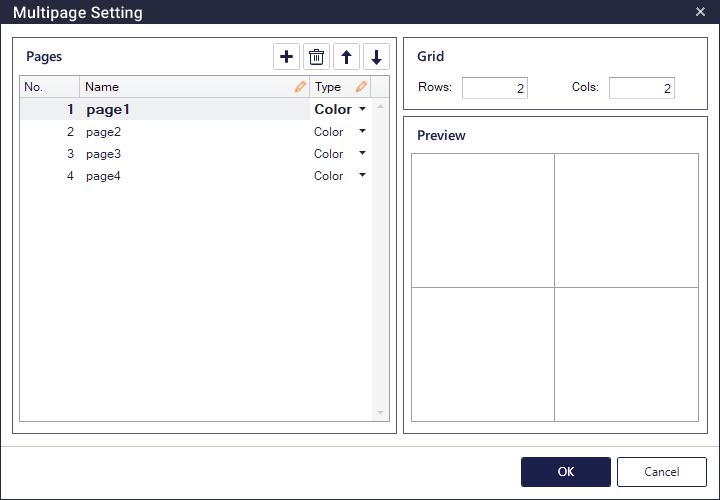
Image List Panel (Images)
 : Click here to open the Multipage Setting panel.
 : Click here to load all images that correspond to each page from the designated folder.
Images to be integrated into one multipage image must be in the same folder. When importing the images, SaigeVision regards the name of the folder as the ID of the multipage image. In the case of structure shown below, if the folder ID_1 is selected to import, Id_1_page1.png and Id_2_page2.png are integrated into the multipage image Id_1 (when page1 and page2 exist in the multipage setting).
Search subfolders when adding images from selected folder in the Databaseoption is also in effect in a Multipage project. For example, when the folder Root is selected to import in the structure shown below, images in the subfolder Id_1 and Id_2 are imported if the option item is checked, while none is imported if not checked.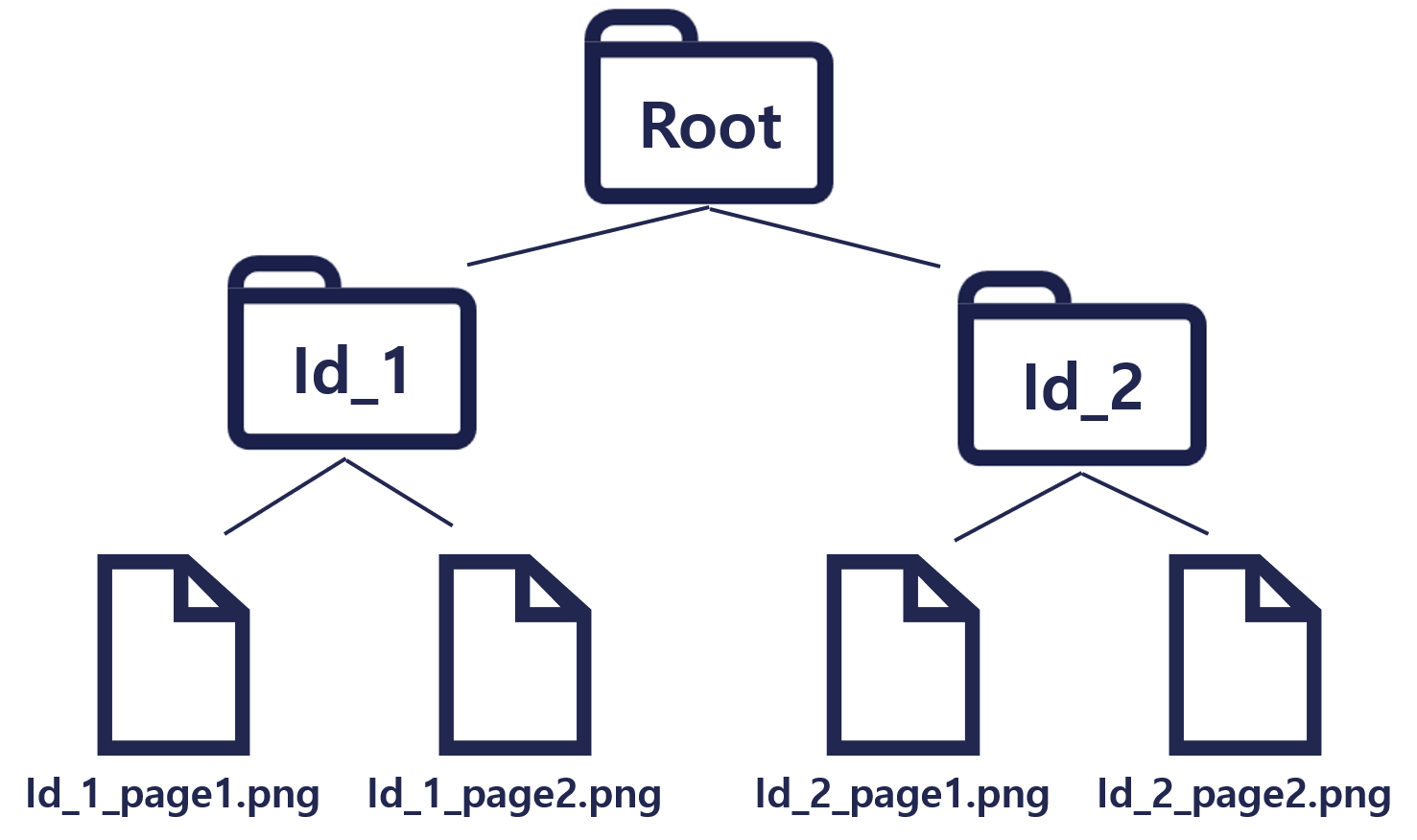
Labeling and ROI Setting Panel
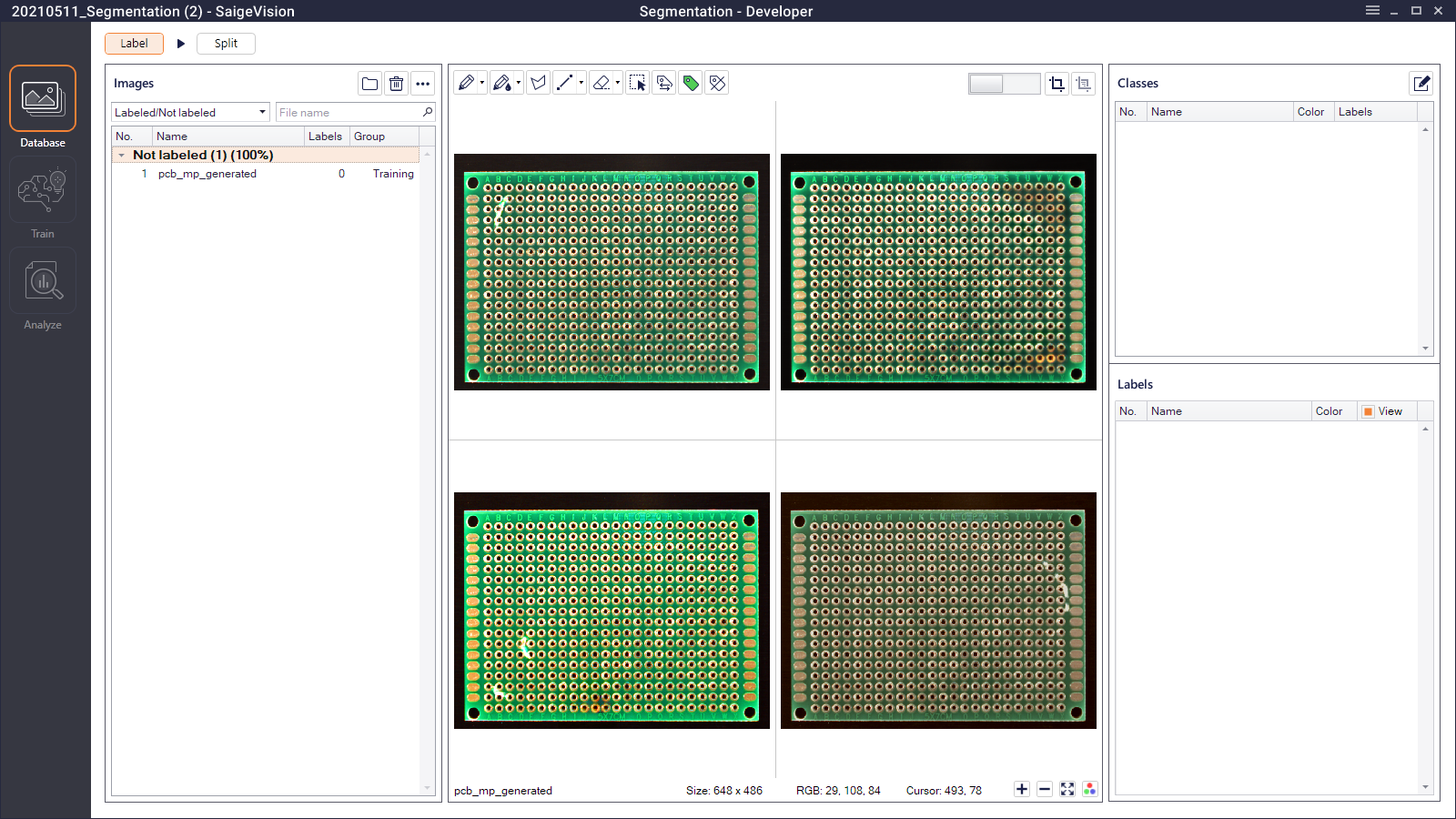
- The grid layout set in the Multipage Setting panel is applied in the Image Panel.
- Labeling, zooming, and panning are available in any cell.
- Advanced ROI is not supported.
[Analyze]
- Clicking the button opens the Multipage Setting panel. Page information is read from the trained model and not modifiable. Users can only change the grid layout.
[Inspect]
- When adding the [Inspect] tab, whether the selected model is Multipage determines whether the [Inspect] tab is Multipage or not.
- Clicking the button opens the Multipage Setting panel. Page information is read from the trained model and not modifiable. Users can only change the grid layout.
Search subfolders when adding images from selected folder in the Inspectoroption is also in effect in a Multipage tab.