
[Train] tab provides a function to train the parameters required for training according to the set parameters.
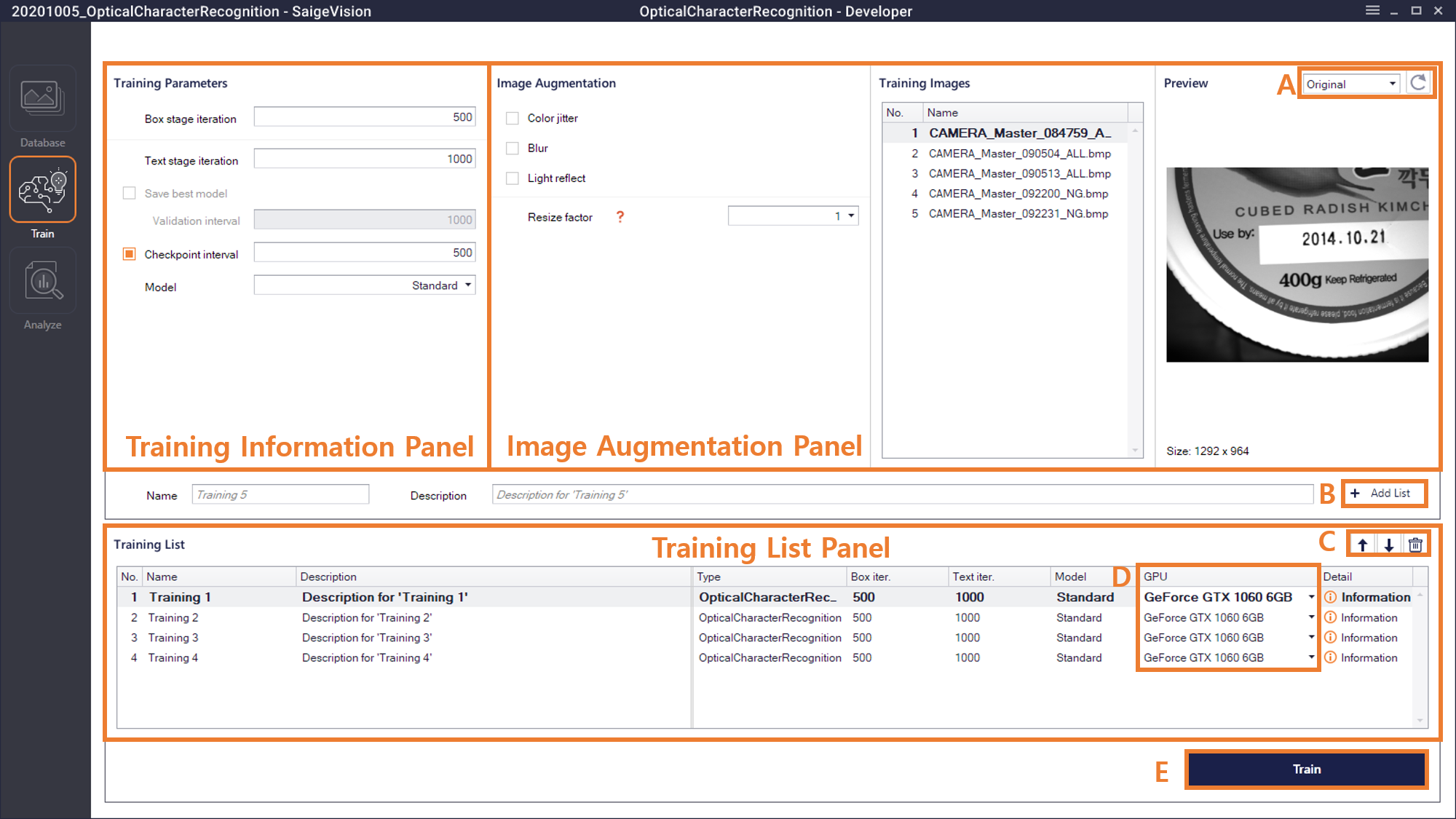
Training Information Panel (Training Parameters)
In the OCR mode, training consists of two steps: Box training and Text training.
Box Training
- Box stage iteration: Box training progresses by this number. It is recommended to set the value in proportion to the amount of data to be trained. Please keep in mind that at least a value of 100 must be entered to save training results.
Text Training
- Text stage iteration: Text training progresses by this number. It is recommended to set the value in proportion to the amount of data to be trained. Please keep in mind that at least a value of 100 must be entered to save training results.
- Save Best Model: During training, the data belonging to the validation group is inspected and the best performance model is stored in the format of [training name].best. When the option is activated, it is possible to set the iteration interval to inspect the validation data. Validation interval should be at least 100.
- Checkpoint Interval: The training result is stored whenever training progresses by the corresponding value. If the checkbox for Checkpoint Interval is not selected, intermediate results are not saved. Here, a value of at least 100 should be entered, and if Save Best Model is activated, an integer multiple of the validation interval should be entered.
Image Augmentation Panel (Image Augmentation)
For stable and effective training, training can be performed with applying various changes to existing images. This technique is called image augmentation. Users can select the type and degree of change to be applied according to the characteristics of the image, and check how it is applied to the actual image in [Train]-[Preview].
- Color jitter: This makes subtle changes in light and shade, contrast, and color.
- Blur: This blurs the image.
- Light reflect: This has the effect of illuminating the light from random angle.
- Resize factor: This reduces the size of the entire image or image patch by a given resize factor. (Deformed image size = Original image size x Resize factor). It is recommended to set the resize factor to a small value when the size of the entire image is too large or users want faster inspection speed.
Training List Panel (Training List)
This is the same as the Training List Panel of the Defect Inspection mode.
Training Progress
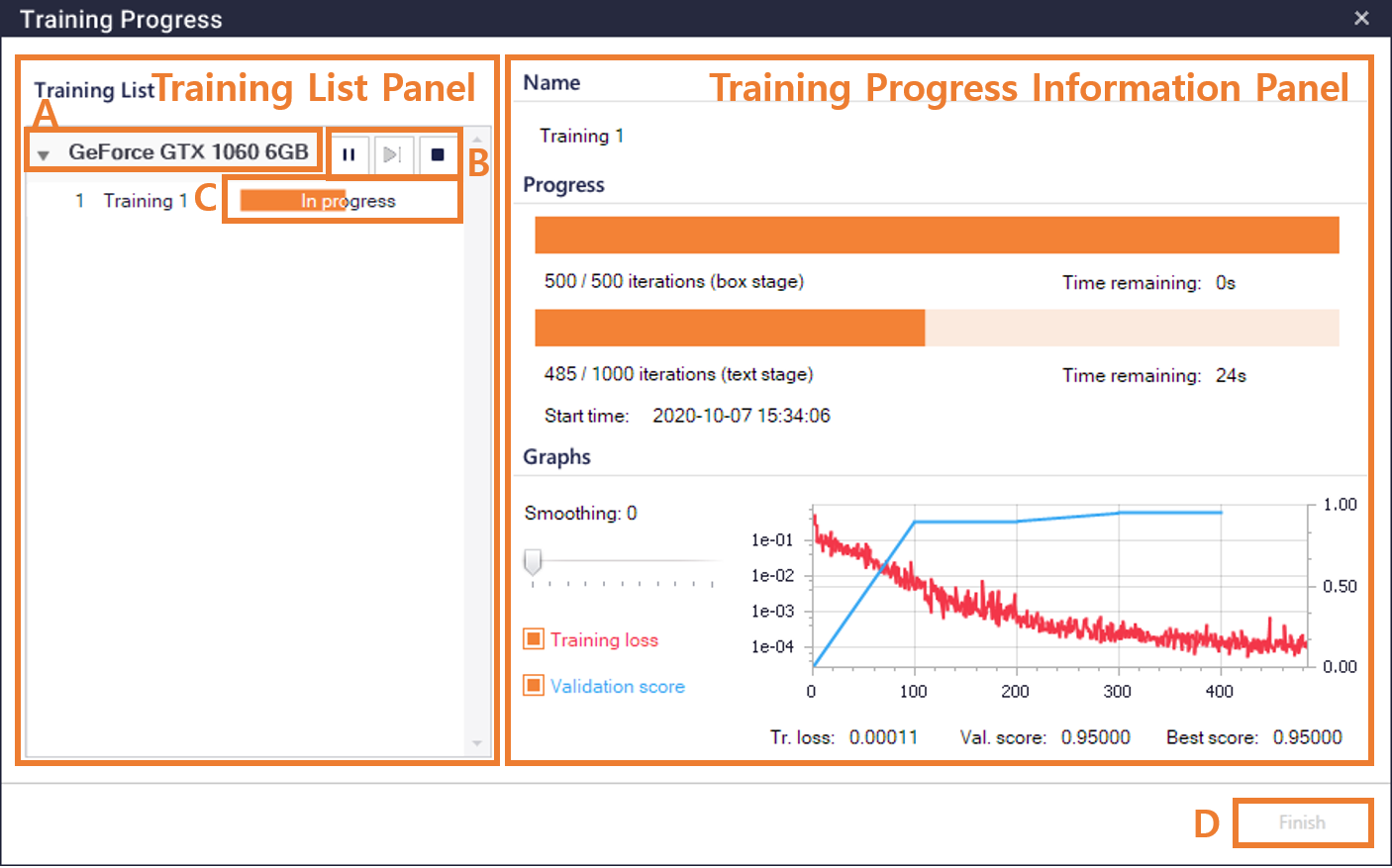
This is the same as the Training Progress of the Defect Inspection mode, excpet that the Training Progress Information panel shows the training progress of the box stage and text stage. The text stage starts after the end of the box stage.