SaigeVision ImageProcess Quick Start - FindLine
이 문서는 ImageProcess 기능 중 FindLine 에 대해서 사용하는 방법에 대해 설명합니다
기능 소개
FindLine 은 원하는 영역 내에서 방향을 통해 Line을 찾는 기술입니다. 찾은 Line 내에 모든 points 값들을 확인할 수 있습니다.
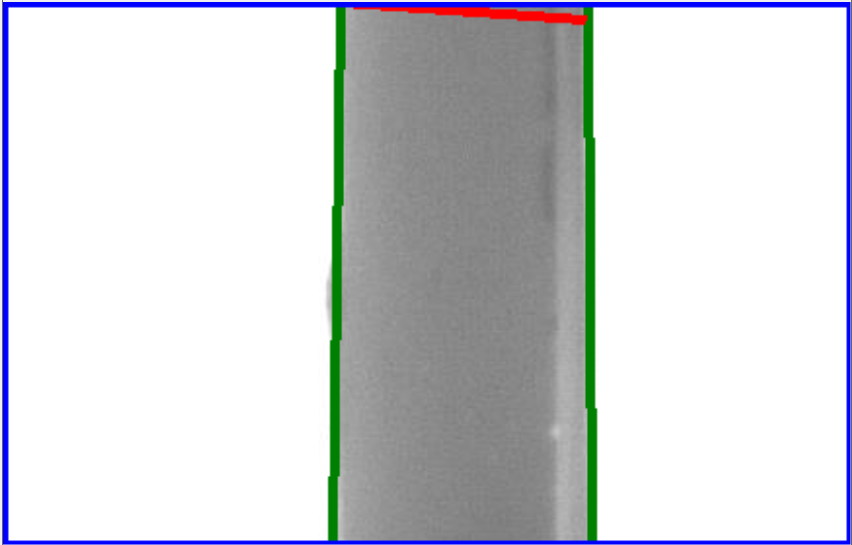
API Detail
아래는 ‘FindLine’ 을 설명하기 위한 샘플 코드입니다.
List<Bitmap> _images = new List<Bitmap>();
string path = @"..\..\images";
_images.Add(new Bitmap(Path.Combine(path, "line.png")));

ConvertImage convertImage = new ConvertImage();
convertImage.SetImage(_images[0]);
SaigeRectangle rectangle = new SaigeRectangle(int x, int y, int widhth, int height);
convertImage.SetArea(rectangle);

var convertOption = convertImage.GetOptions();
convertOption.ConvertType = ThresholdFlags.THRESH_BINARY;
convertOption.MaxThreshold = 255;
convertOption.Threshold = 50;
convertImage.SetOptions(convertOption);

convertImage.Inspection();
Bitmap binaryImage = convertImage.GetResultImage();

SaigeRectangle inspectionArea = new SaigeRectangle(int x, int y, int widhth, int height);
FindLine findLine = new FindLine();
findLine.SetImage(binaryImage);
findLine.SetArea(inspectionArea ;

var option = findLine.GetOptions();
option.SearchDirection = DirectionFlags.BOTTOM_TO_TOP;
option.ColorDirection = ColorDirectionFlags.BLACK_TO_WHITE;
findLine.SetOptions(option);

findLine.Inspection();
SaigePoint[] points = result.Points;

findLine.Dispose();
convertImage.Dispose();
Inspection
FindLine 함수를 사용하기 위해서는 이진화 이미지가 필요합니다. grayscale 이미지를 가지고 있을 경우 이진화 함수를 추가적으로 사용할 수 있습니다.
ConvertImage 를 이용하여 이진화를 진행하게 됩니다.
Option에서 이진화하는 방식에 대해서 선택을 하게 됩니다.
- THRESH_BINARY: Threshold 값 이하는 0으로, 초과값으 255로 변환
- THRESH_BINARY_INV: Threshold 값 이하는 255로, 초과값을 0로 변환
- THRESH_TRUNC: Threshold 값 이하는 밝기 값 그대로, 초과값은 Threshold 값으로 변환
- THRESH_TOZERO: Threshold 값 이하는 0으로, 초과값은 밝기 값 그대로 변환
- THRESH_TOZERO_INV: Threshold 값 이하는 그대로, 초과값은 0으로
- THRESH_MASK: 모든 픽셀 값을 0으로변환
- THRESH_OTSU: 내부 알고리즘을 통하여 최적화된 값으로 이진화
- THRESH_TRIANGLE: Triangle 알고리즘을 통하여 최적화된 값으로 이진화
SetArea 함수를 통하여 변환하고자 하는 이미지의 사이즈를 설정할 수 있습니다.
GetOptions 를 통하여 설정값을 가져오고 SetOptions 로 변경된 값을 적용
이후 Inspeciton 을 통해 검사 후 GetResultImage 를 통해 이진화된 이미지를 받아옵니다
ConvertImage convertImage = new ConvertImage();
convertImage.SetImage(_images[0]);
SaigeRectangle rectangle = new SaigeRectangle(int x, int y, int widhth, int height);
convertImage.SetArea(rectangle);

var convertOption = convertImage.GetOptions();
convertOption.ConvertType = ThresholdFlags.THRESH_BINARY;
convertOption.MaxThreshold = 255;
convertOption.Threshold = 50;
convertImage.SetOptions(convertOption);

convertImage.Inspection();
Bitmap binaryImage = convertImage.GetResultImage();
FindLine 생성 후 SetImage 를 통해 찾을 이미지를 설정하고 SetArea 를 통해 검사 영역을 설정하게 됩니다.
GetOptions 를 통하여 설정값을 가져오고 SetOptions 로 변경된 값을 적용
- SearchDirection: Line을 찾기 위한 방향을 설정합니다.
- TOP_TO_BOTTOM: 이미지 위에서 아래로 검색을 하며 Line을 위한 포인트를 찾습니다
- BOTTOM_TO_TOP: 이미지 아래에서 위로 검색을 하며 Line을 위한 포인트를 찾습니다
- LEFT_TO_RIGHT: 이미지 좌측에서 우측으로 검색을 하며 Line을 위한 포인트를 찾습니다
- RIGHT_TO_LEFT: 이미지 우측에서 좌측으로 검색을 하며 Line을 위한 포인트를 찾습니다
- ColorDirection
- BLACK_TO_WHITE: 어두운 부분에서 밝은 부분으로 변하는 부분에 대해서 LINE을 찾습니다.
- WHITE_TO_BLACK: 밝은 부분에서 어두운 부분으로 변하는 부분에 대해서 LINE을 찾습니다.
이후 Inspeciton 을 통해 검사 후 GetResult 를 통해 최종 결과를 받아옵니다.
SaigeRectangle inspectionArea = new SaigeRectangle(int x, int y, int widhth, int height);
FindLine findLine = new FindLine();
findLine.SetImage(binaryImage);
findLine.SetArea(inspectionArea ;

var option = findLine.GetOptions();
option.SearchDirection = DirectionFlags.BOTTOM_TO_TOP;
option.ColorDirection = ColorDirectionFlags.BLACK_TO_WHITE;
findLine.SetOptions(option);

findLine.Inspection();
SaigePoint[] points = result.Points;
모든 검사가 완료되었다면 Dispose 를 통해 메모리를 해제해 줍니다.
findLine.Dispose();
convertImage.Dispose();